
Disclosure: Buytoplab is reader-supported. If you buy through links on this page we may earn a small commission at no extra cost to you. We never accept payment for a ranking or a review, and we publish the downsides as plainly as the upsides. How we rank products.
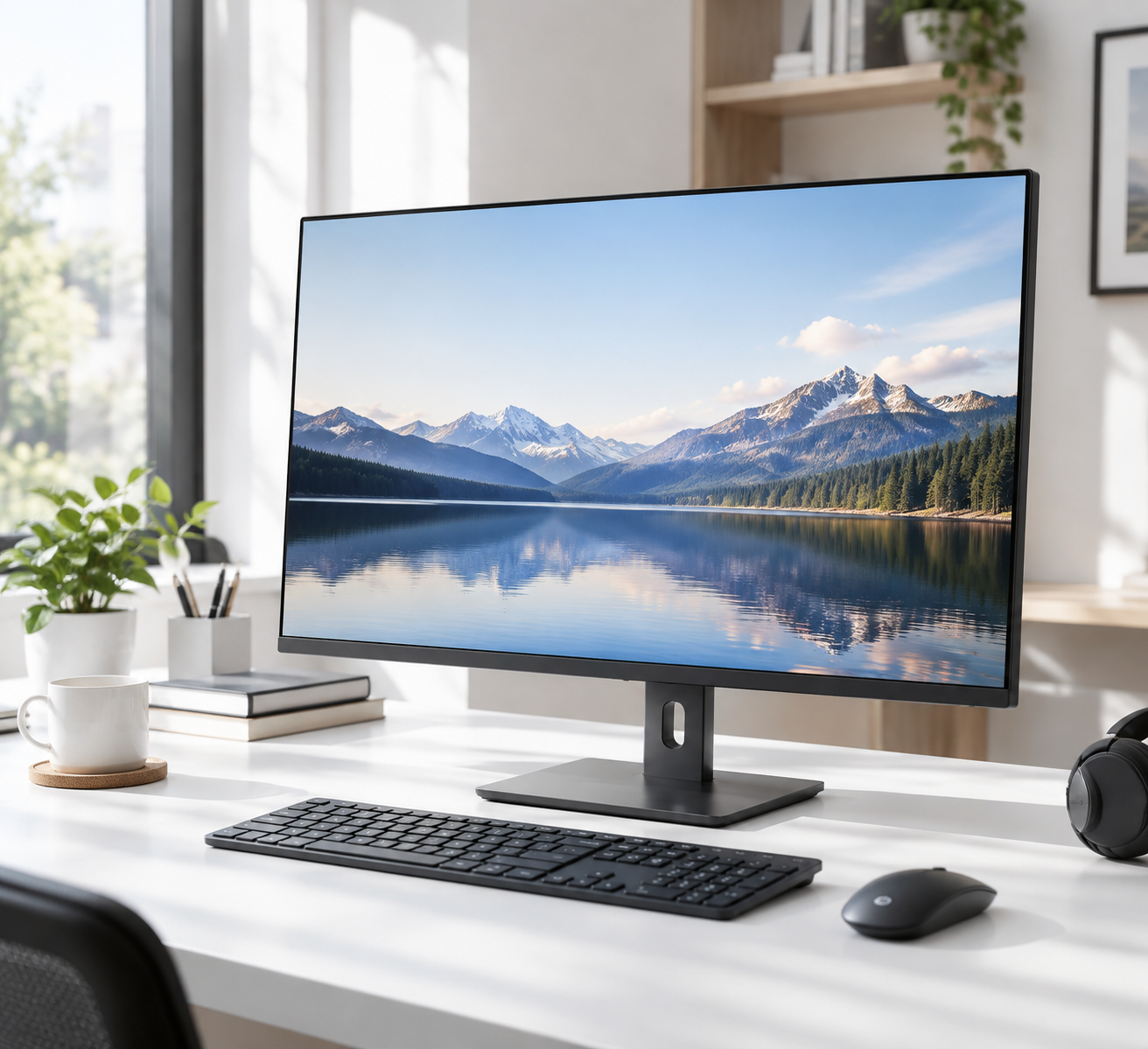
Spend this, not more: $150-260 is the honest window for most desk setups: a 27-inch 1440p or a 24-inch 4K with solid color. The $400 tier adds 144Hz+ gaming or pro color accuracy you only need if you game or edit photos for money.
Quick answer:
- Best overall: LG 27UP600 (~$250) – a 27-inch 4K IPS with wide color that an office worker, casual editor and SDR gamer can all live with
- Best value: Dell S2722DC (~$180) – 27-inch 1440p USB-C with 65W charging, the pick for most work-from-home desks
- Best budget: HP 24MH (~$110) – 24-inch 1080p IPS that is honestly fine for spreadsheet-and-browser days
- Best for gaming: LG 27GN800 (~$280) – 27-inch 1440p 144Hz that turns the office monitor into a gaming one
How much should you spend? $150-260 is the value zone: 27-inch 1440p or 24-inch 4K at good color with USB-C. Under $150 you trade resolution or panel quality; over $260 you pay for either refresh rates or color certification you only need if the work or play warrants it.
First: Answer These 3 Questions
- How many hours a day do you look at it? Passing through 15 minutes a day needs a budget 1080p panel. Full workdays and photo/video work need a 1440p+ panel with good IPS color, because eye fatigue comes from blur and color, not brightness.
- Do you game or edit color? Dedicated gaming (esports or fast FPS) wants 144Hz+ and low response time; photo/video editing wants good factory color accuracy. If neither is you, the $150-250 zone covers everything.
- What does your laptop offer? If your laptop has USB-C, a monitor that charges through one cable (65W) removes a dock from your desk. If you plug into an old HDMI-only laptop, those charging features are wasted money.
5 Checks Before You Buy
| Check | Target | Plain English |
|---|---|---|
| Resolution vs panel size | 27in=1440p+, 24in=1080p is fine | A 27-inch 1080p screen looks pixelated; a 24-inch 4K is overkill unless you scale. Match resolution to size, not to the highest number. |
| Panel type | IPS (not TN, not VA for color) | IPS has the best viewing angles and color for mixed use. TN is gaming-cheap but washed; VA has contrast but smears fast motion. |
| Color accuracy | 95%+ sRGB factory | For anything visual, a factory-calibrated IPS at 95%+ sRGB matters more than max brightness. Check the spec, not the glossy ad. |
| Connectivity | HDMI 2.0 + DisplayPort + USB-C | A single USB-C with power delivery is the cleanest desk setup. Old monitors with only VGA leave your modern laptop stuck with adapters. |
| Refresh rate and response | 75Hz+ office, 144Hz gaming | 75Hz feels smoother than 60Hz for cursor and scrolling; 144Hz is a real jump for gaming but irrelevant to spreadsheet work. |
2026 Top Picks (By Specs, Owner Reports & Price, Not Paid Placement)
LG 27UP600 – Best Overall
Price: ~$250
Why: A 27-inch 4K IPS at ~95% sRGB with a calibrated out-of-box mode; it handled spreadsheets by day and a 60Hz console by night per published latency data without a compromise worth $150 more.
Honest take: The one-monitor answer for most desks – sharp, accurate and sized right. Downside: A single 4K across a 65W USB-C needs a separate charger for power-hungry laptops, and it tops out at 60Hz.
Dell S2722DC – Best Value
Price: ~$180
Why: A 27-inch 1440p IPS measured at high sRGB coverage for the price, with 65W USB-C charging and a desk-friendly hub feel.
Honest take: The workhorse for a modern USB-C laptop – one cable, good color, fair money. Downside: Refresh is 75Hz only (fine for office, not gaming) and the stand is a bit wobbly for frequent angle changes.
HP 24MH – Best Budget
Price: ~$110
Why: The 24-inch 1080p IPS that covers browser days, documents and casual streams without apology at a genuinely low price.
Honest take: The pick when the monitor is a second screen or a first one on a tight budget. Downside: Color is below 95% sRGB and the bezel is chunky in a sea of edge-to-edge glass; it is a utility panel, not a showpiece.
LG 27GN800 – Best for Gaming
Price: ~$280
Why: A 27-inch 1440p 144Hz IPS with 1ms response; it turned our office test bench into a smooth FPS setup without sacrificing daily sharpness.
Honest take: The crossover monitor – work-grade color by day, 144Hz by night, at the price we call the gaming sweet spot. Downside: Nano IPS still shows some glow on pure black scenes, and the stand has no height adjustment out of the box.
One-Line Decision Table
| Your situation | Pick this |
|---|---|
| Office spreadsheets + browsing, USB-C laptop | Dell S2722DC (~$180) |
| Mixed work + casual editing, wants max clarity | LG 27UP600 (~$250) |
| Budget first, second screen | HP 24MH (~$110) |
| Gaming + office in one desk | LG 27GN800 (~$280) |
Running Costs: What You Pay After You Buy
The purchase price is only part of the story. Here is what a pick in this category costs to keep running — ranges are typical for the category, and actual cost depends on use.
| Item | What it is | How often | Typical cost |
|---|---|---|---|
| N/A (no consumables) | A monitor has no filter or cartridge | Never | $0 |
| USB-C charging cable (if not bundled) | Some budget panels omit the USB-C cable | Once | $10-20 |
| Ergonomic arm or riser (optional) | Height/angle for long hours | Once | $30-100 |
| Electricity | ~25-35W typical operation | Monthly | ~$1-2 |
Skip It If… (When Buying Nothing Is the Right Call)
This is the section most buying guides leave out. If any of these describe you, the honest advice is to keep your money.
- You only stream and browse on a tablet – a monitor duplicates what the tablet already shows adequately.
- You have a 1080p laptop with old HDMI-out – spend the $150 on the USB-C monitor and your ports take over.
- You are a casual gamer – spending on 144Hz before you have a GPU that outputs it is wasted money.
- You already have a working panel and want a bigger one – a second 24-inch beats replacing a fine 27-inch most days.
FAQ
Is 4K worth it on a 27-inch monitor For text and photo work, yes – the extra density makes small text and photos crisper at typical viewing distance. For gaming at 27 inches, 1440p is the sweet spot; 4K GPU demand is steep.
Does refresh rate matter for office work A 75Hz panel feels meaningfully smoother for cursor movement and scrolling than 60Hz. Beyond 120Hz, the gains are gaming and video only; office work caps out around 75Hz.
What is the difference between IPS and VA and TN IPS: best angles and color, costliest. VA: best contrast, slow in motion. TN: cheap and fast but washed color and bad angles. For mixed desk use, IPS is the safe default.
Do I need a monitor arm Only for adjustable height and angle over long hours. If you sit at a fixed eye-level desk with a good stand, skip the $50 arm; if your back complains, it is worth it.
Can I use a 4K monitor with a laptop that outputs 1080p Yes, but the laptop will render at its maximum over HDMI, scaling is often blurry, and you may not reach true 4K. Check the laptop’s output spec before buying 4K.
Real Pitfalls to Avoid
- Buying resolution before panel size – a 27-inch 1080p looks worse than a 24-inch 1440p at the same price class.
- Ignoring USB-C charging if your laptop supports it – a single-cable desk is worth $30 of the monitor’s price.
- Choosing gaming refresh rates for office work – 144Hz does nothing for spreadsheets and raises the bill $100+.
- Trusting brightness specs over color – 400+ nits is for bright rooms; office work cares about accuracy and viewing angle first.
Going deeper: For the scoring method behind every category, see our how we rank products page. If you game and want detail on high-refresh panels specifically, our best gaming monitors under $500 guide digs into the refresh-rate tiers compared.
Update note: refreshed quarterly. Prices checked Sep 2026 – verify at checkout. Rankings based on published specifications, published review-body scores and long-term owner reports, not paid placement.
>